
20+ Top Social Media Sites and Platforms to Grow Your Brand in 2025
As we venture into 2025, the landscape of social media continues to evolve, presenting brands…
Solutions
Solutions OverviewMarketing AgenciesSmall BusinessesSocial Media ManagersMarketing TeamsContent CreatorsMulti-Brand MarketingBy Outcome
Social Media CampaignsSeasonal MarketingProduct Launch ContentEvent PromotionBrand-Consistent ContentContent RepurposingCross-Platform ContentMarketing Asset ReuseProduct EducationEducational ContentCustomer Story ContentSEO Blog ProductionBlog Content RefreshContent Performance ReviewPricingResourcesOolook Best

To quickly disable Sticky Keys, follow these simple steps to ensure a smooth and frustration-free experience on your computer. Below, we provide clear instructions for different operating systems to help you navigate the process effortlessly.
These straightforward steps should help you disable Sticky Keys on your device without any hassle. If you continue to experience issues, further troubleshooting might be required, which we will cover in the next section.
Transitioning from our quick and easy guide on how to cancel Sticky Keys, let’s delve into understanding what Sticky Keys are and why they might inadvertently get activated on your device.
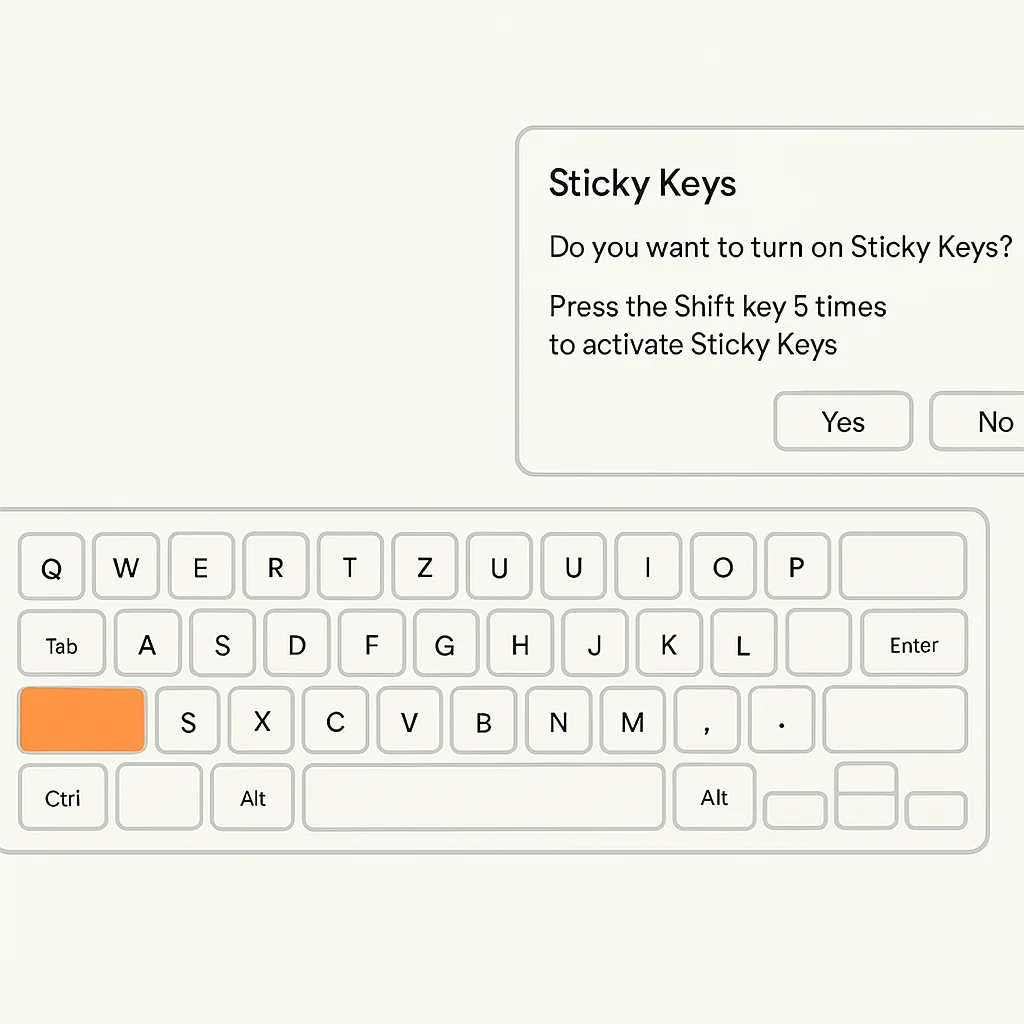
Sticky Keys is an accessibility feature designed to help individuals who have difficulty holding down multiple keys simultaneously. When enabled, it allows a user to press keys like Shift, Ctrl, Alt, or the Windows key one at a time instead of together, making it easier to execute keyboard shortcuts and commands.
However, there are common scenarios where Sticky Keys might get activated unintentionally. For instance, repeatedly pressing the Shift key five times in a row triggers a prompt to activate this feature. This can easily happen during gaming sessions, intense typing, or any activity that involves rapid key presses. Understanding Sticky Keys settings and how they work is crucial to prevent any disruptions in your workflow.
For more details on accessibility settings, check out our comprehensive guide. Furthermore, you might be interested in a high-quality study on accessibility features in operating systems, which you can find here.
Now that you have a basic understanding of Sticky Keys, let’s dive into the step-by-step guide to disable Sticky Keys on your device. Whether you’re using Windows 10 or macOS, we’ve got you covered with clear and concise instructions.
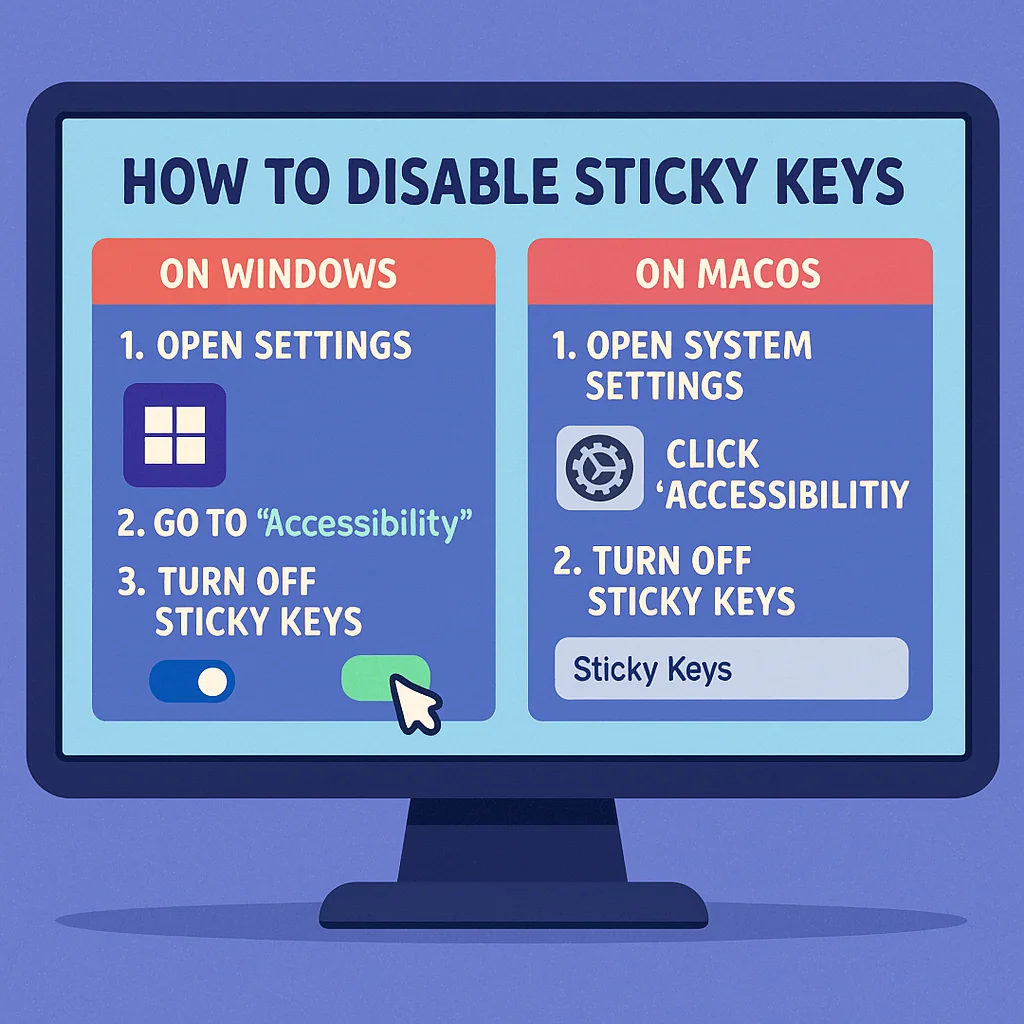
For more detailed information, you can refer to the official Microsoft support page.
If you prefer using a Sticky Keys shortcut, here’s how you can quickly disable it:
If you’re looking to optimize your workflow beyond just managing Sticky Keys, learn about optimizing your workflow with our side hustle guide.
By following these steps, you can easily disable Sticky Keys on both Windows and macOS, ensuring a smoother and more efficient typing experience.
Now that you have followed the step-by-step guide to disable Sticky Keys, you might encounter a few challenges along the way. Here are some Sticky Keys troubleshooting tips to help you resolve any issues swiftly.
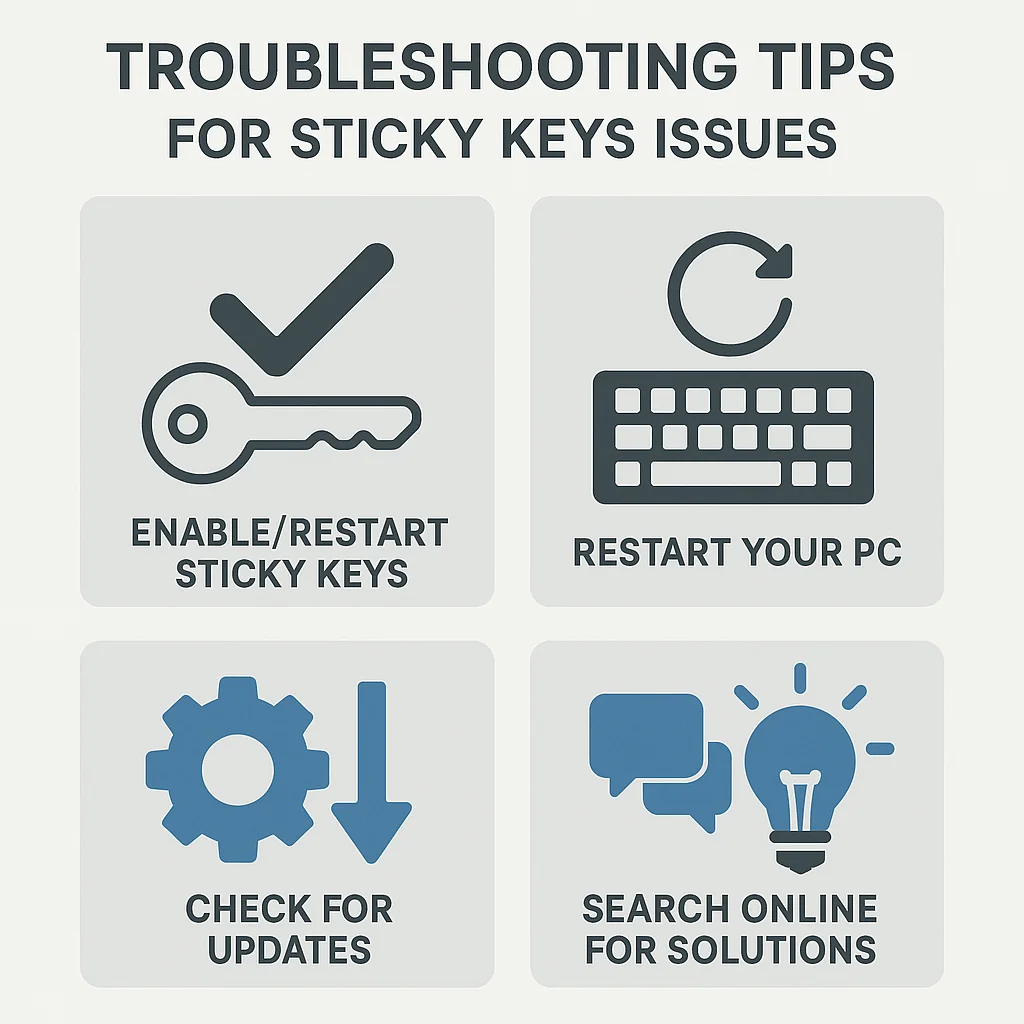
If you find that Sticky Keys won’t turn off despite following the instructions, try these solutions:
Outdated software can sometimes cause Sticky Keys to malfunction. Here’s how you can check for updates:
Sometimes, the best solutions come from other users who have faced similar issues. Check out this community forum with user-contributed solutions where you might find specific fixes for your Sticky Keys problem.
Additionally, user-contributed solutions can offer insights into uncommon issues and their fixes. For more troubleshooting tips, explore our viral marketing campaigns guide.
By following these Sticky Keys troubleshooting tips, you should be able to resolve most issues and ensure a smoother experience. Next, we will discuss how to prevent Sticky Keys from activating unintentionally.
After addressing potential issues in the troubleshooting section, it’s essential to know how to prevent Sticky Keys activation in the first place. Adjusting your keyboard settings, using alternative accessibility features, and performing regular system maintenance can help you achieve this.
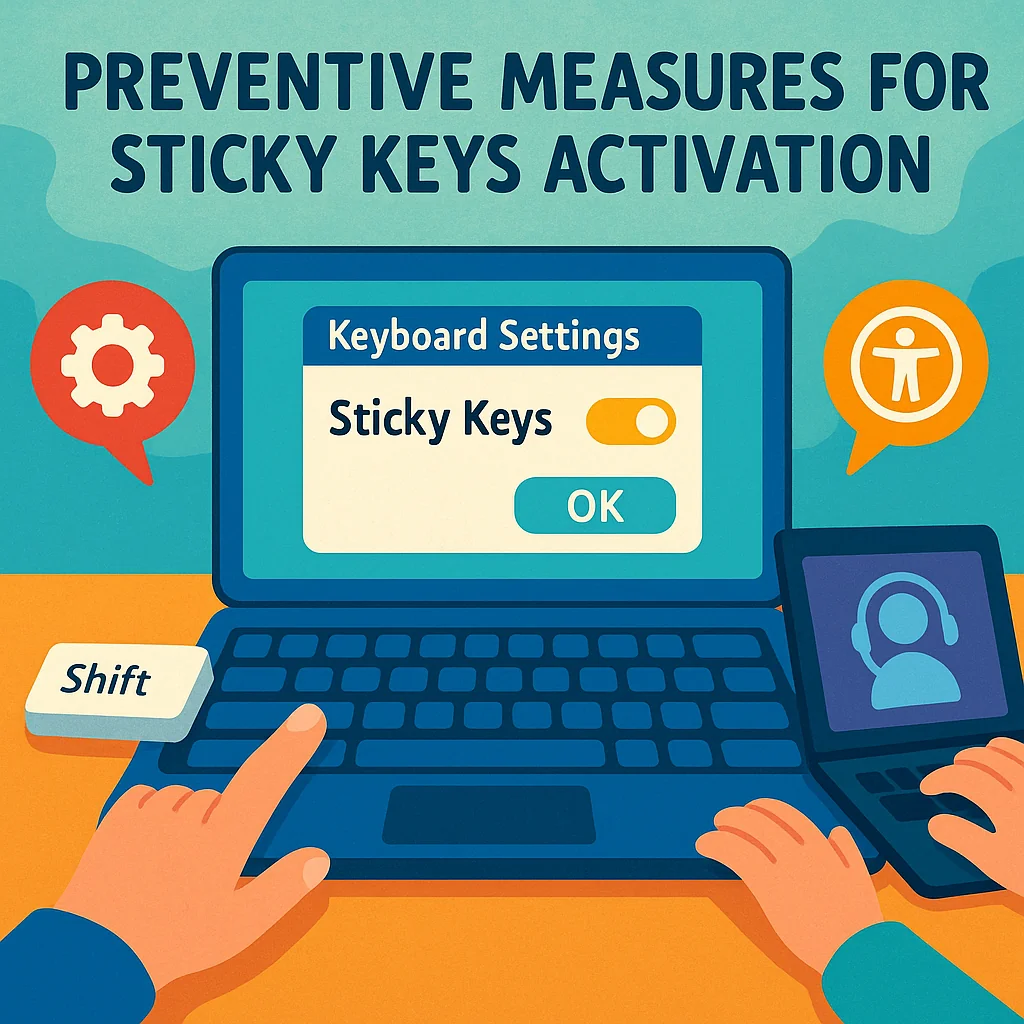
One of the simplest ways to prevent Sticky Keys from activating is by adjusting your keyboard settings. Here’s how you can do it:
These steps will ensure that the Sticky Keys feature does not get activated accidentally.
If you rely on accessibility features but find Sticky Keys inconvenient, consider using alternative options. Many operating systems offer a variety of tools to assist users without enabling Sticky Keys. For a comprehensive guide on customizing these features, visit this resource.
Regular system maintenance can also help in managing and preventing unwanted activation of Sticky Keys settings. Here are a few quick tips:
For more on optimizing settings, check out our 30-day UGC creator guide.
Having explored the various steps to disable Sticky Keys and understanding the preventive measures to avoid future issues, you are now well-equipped to handle any challenges that come your way. By following the detailed instructions provided, you can quickly and effectively turn off Sticky Keys whenever necessary, ensuring a smoother and more efficient computer experience.
Remember, preventive measures such as adjusting your accessibility settings and being mindful of keyboard shortcuts can save you from unexpected Sticky Keys activation in the future. Stay proactive, and you’ll keep your workflow uninterrupted and frustration-free.
While preventing accidental activation of Sticky Keys is essential, understanding what Sticky Keys are can provide more clarity. Sticky Keys is an accessibility feature designed to assist users who may have difficulty pressing multiple keys simultaneously. This feature allows modifier keys like Shift, Ctrl, and Alt to remain active even after being pressed and released, making it easier for users with mobility impairments to execute keyboard shortcuts and combinations without needing to hold down multiple keys at once.
After understanding what Sticky Keys are, you might be wondering how to turn off this feature on your Windows 10 device. Follow these simple steps to disable Sticky Keys:
By following these steps, you can easily disable Sticky Keys and continue using your computer without any interruptions.
After learning how to disable Sticky Keys on Windows 10, let’s move on to disabling them on a Mac. The process is straightforward and can be done in just a few steps:
By following these steps, you can easily disable Sticky Keys on your Mac, ensuring a smoother and more efficient typing experience.
Understanding why Sticky Keys get activated can help you prevent it from happening unintentionally. Often, Sticky Keys are activated accidentally when you hold down the Shift key for too long. This can occur during normal typing or gaming sessions. Additionally, Sticky Keys can be enabled through the computer’s accessibility settings, which are designed to assist users with physical disabilities.
If Sticky Keys won’t turn off, don’t worry, there are a few steps you can take to resolve this issue. First, ensure that your operating system is up to date. Check for software updates as sometimes bugs causing Sticky Keys to remain active are fixed in newer versions of the software.
If updating doesn’t help, try restarting your computer. This can often resolve minor glitches that may be causing Sticky Keys to stay on.
If the problem persists, you might find useful advice by consulting community forums. Many users share their experiences and solutions online, providing a wealth of troubleshooting tips that can help you fix the issue.
Explore more insights on AI, social media, and building a brand that lasts.
As we venture into 2025, the landscape of social media continues to evolve, presenting brands…

Want to get more done, faster — without burning out?You’re not alone. Enter: the Pomodoro…

As brands look ahead to 2025, TikTok continues to be a powerhouse for marketing…

How to Use Instagram Collab Posts to Boost Engagement & Reach Instagram Collab posts are…