Oolook for Social Media Scheduling

Schedule Social Media Content With Brand Context Intact

Move approved captions and creative assets into destination-specific drafts, review supported publishing requirements, and monitor each post through the publication workflow.

Oolook Copilot

Controlled social scheduling

Working in: Alder & Form
Ask anything
This is a fictional demonstration. Supported publishing settings depend on the destination and connected profile.
Schedule approved postsReview next week's calendarFind publishing issues

Supported actions are prepared for review and confirmation. Publishing capabilities and formats depend on current Oolook availability and the destination network.

Controlled social media scheduling

Schedule the Complete Post, Not Just a Date and Time

Keep the caption, media, selected profile, destination settings, timezone, publishing status, and available reporting connected to the correct brand workspace.

Start with approved content

Move Brand-Aware Drafts Into the Publishing Workflow

Prepare scheduling actions using content and creative assets already associated with the selected brand, campaign, and destination.

  • Use approved captions and destination-specific variants
  • Select uploaded, generated, or processed media
  • Keep every draft associated with the correct brand
  • Save incomplete work until it is ready for review
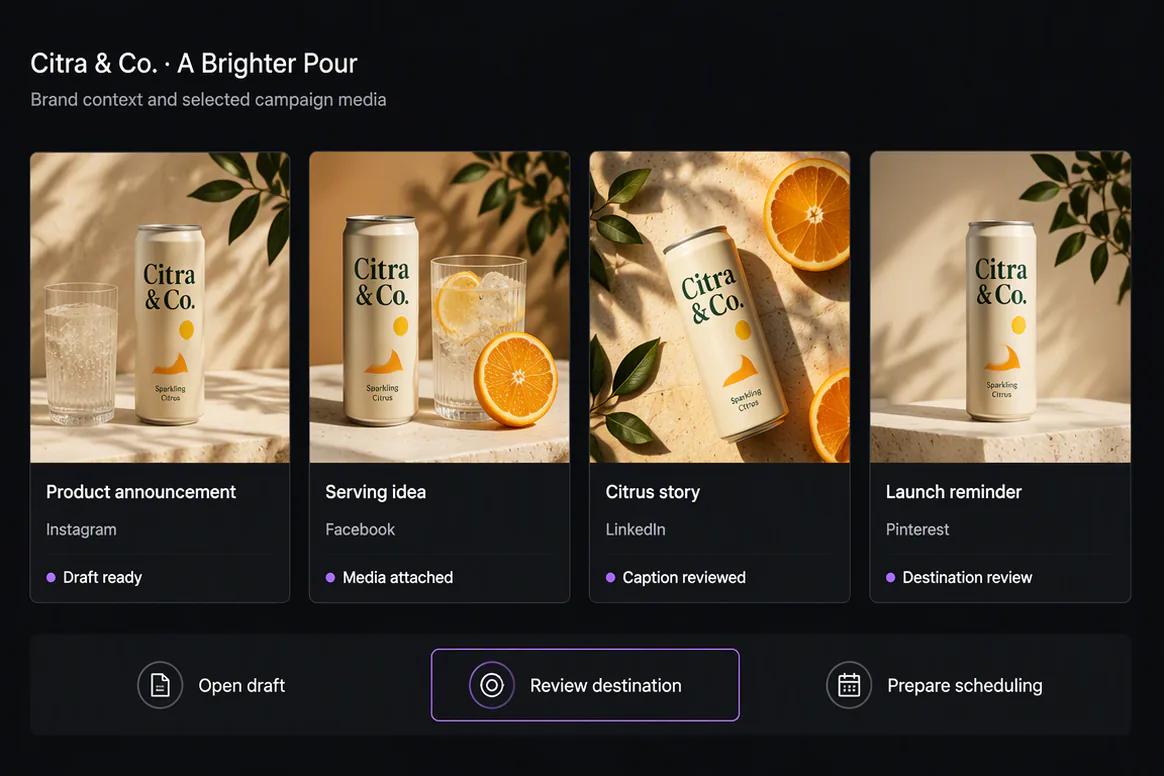
Brand-aware social media drafts prepared for scheduling in Oolook

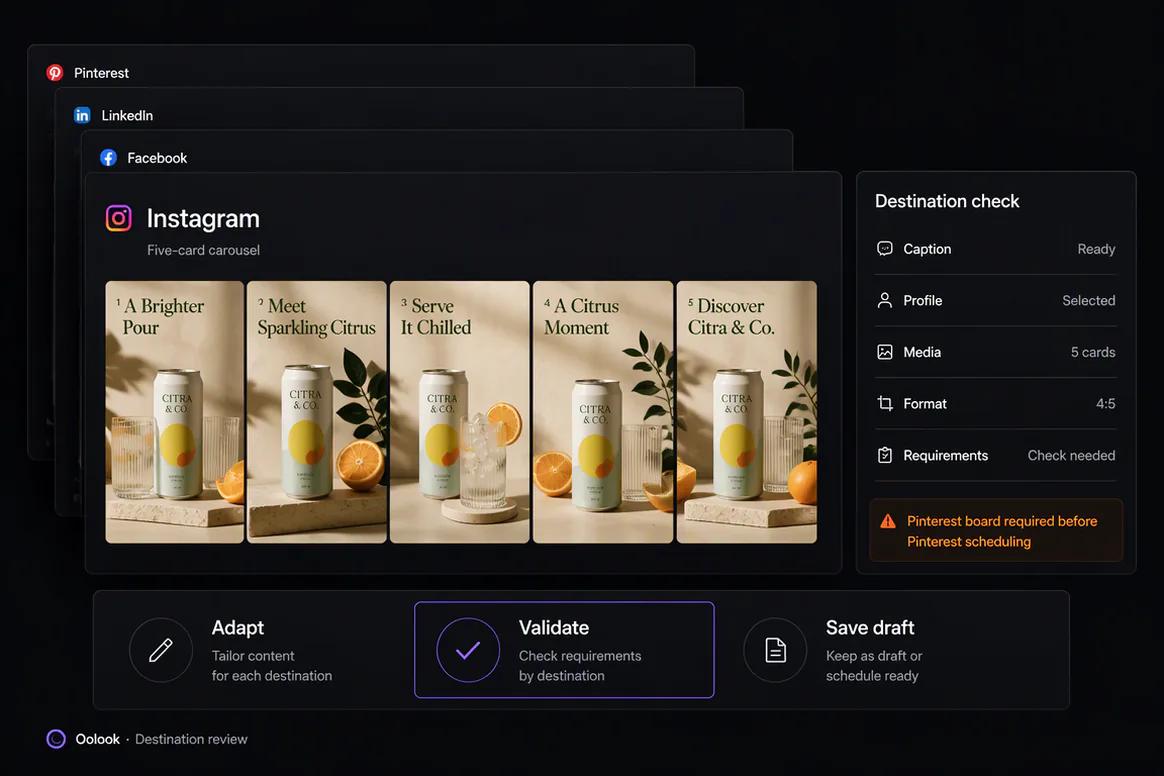
Review each destination

Check Platform Requirements Before Submission

Treat each social destination as a separate publishing action so its content, media, settings, and eligibility can be reviewed independently.

  • Confirm the selected social profile
  • Review the destination-specific caption and media
  • Check supported platform fields and requirements
  • Identify incomplete or unsupported publishing details
Destination-specific social publishing settings reviewed in Oolook

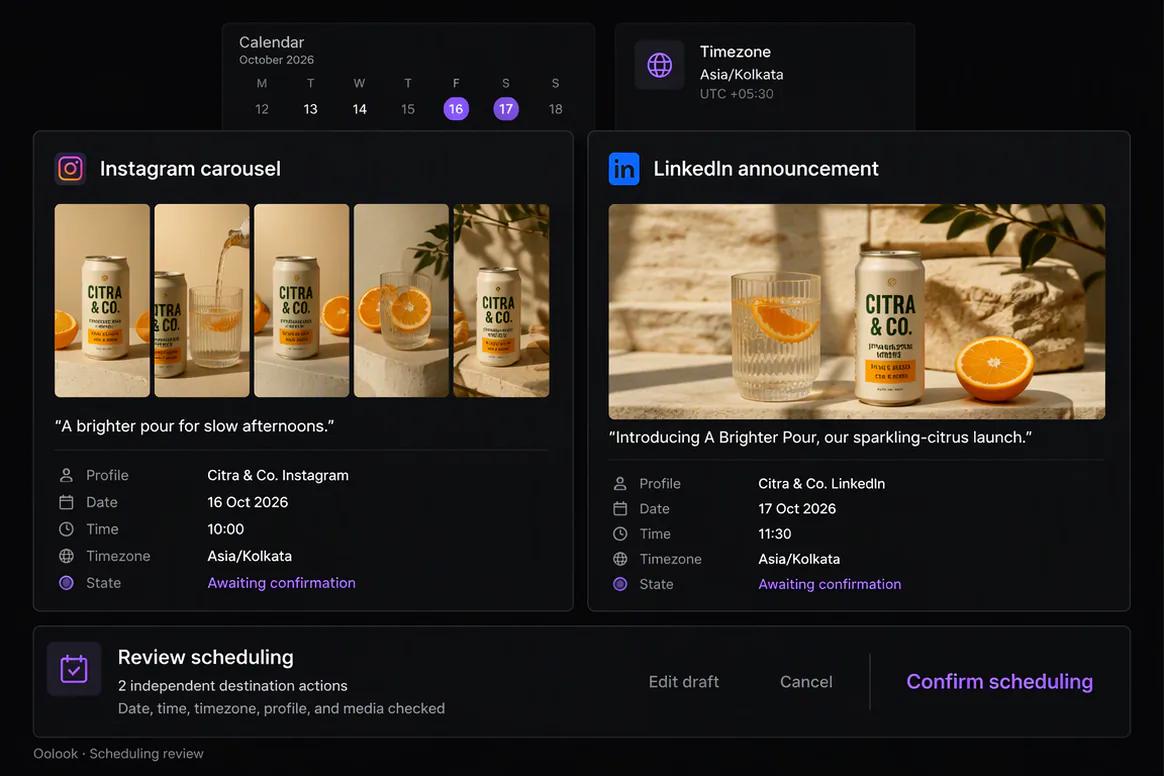
Choose the timing

Schedule Eligible Content by Date, Time, and Timezone

Set the intended publication timing only after the destination, content, creative asset, and supported platform settings are correct.

  • Choose immediate or scheduled publication where supported
  • Set an appropriate date, time, and timezone
  • Review the complete action before confirmation
  • Keep separate destinations independently editable
Social media content scheduled by date time and timezone in Oolook

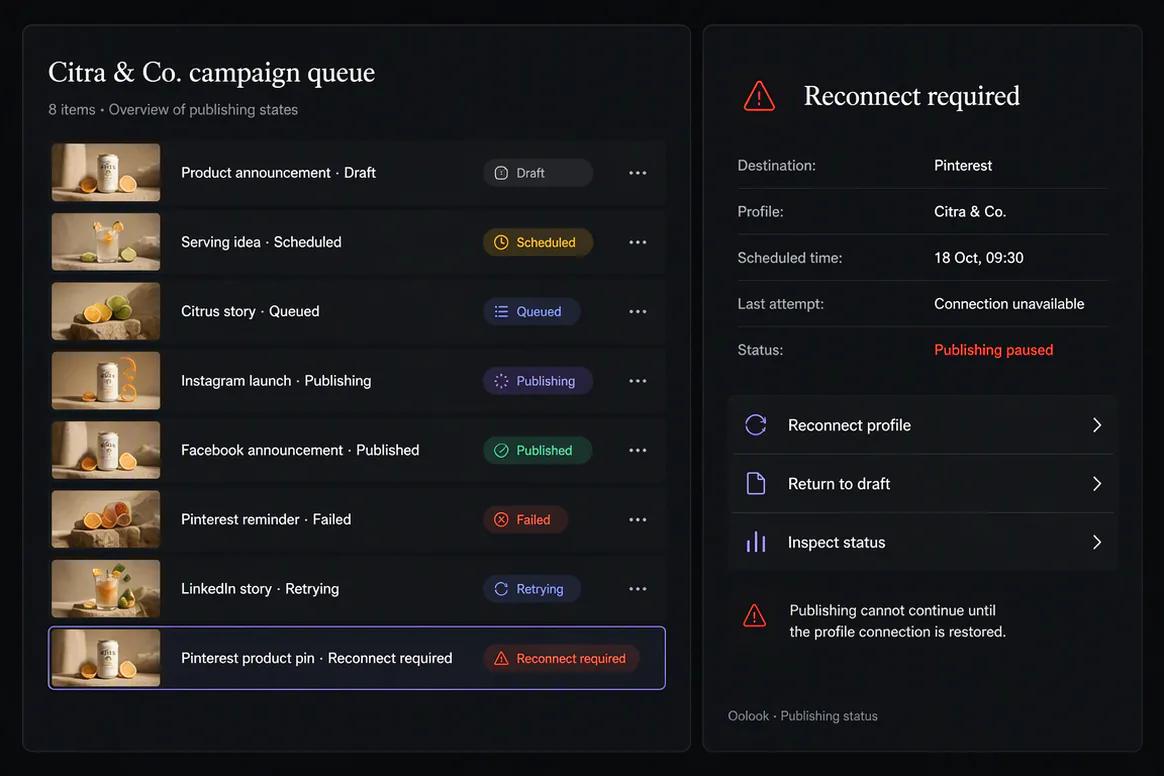
Monitor publication

Follow Every Post Through the Publishing Queue

Keep the underlying publication state visible so scheduled, processing, failed, retrying, reconnect-required, and completed actions can be reviewed.

  • Monitor scheduled and queued content
  • Identify actions that require reconnection or attention
  • Review supported retry and publication states
  • Return to available profile and post reports
Oolook social publishing queue showing publication states

Scheduling workflow examples

Move Approved Content Into a Controlled Publishing Workflow

Connect destination validation, timing, confirmation, queue states, and publication monitoring without separating posts from their brand context.

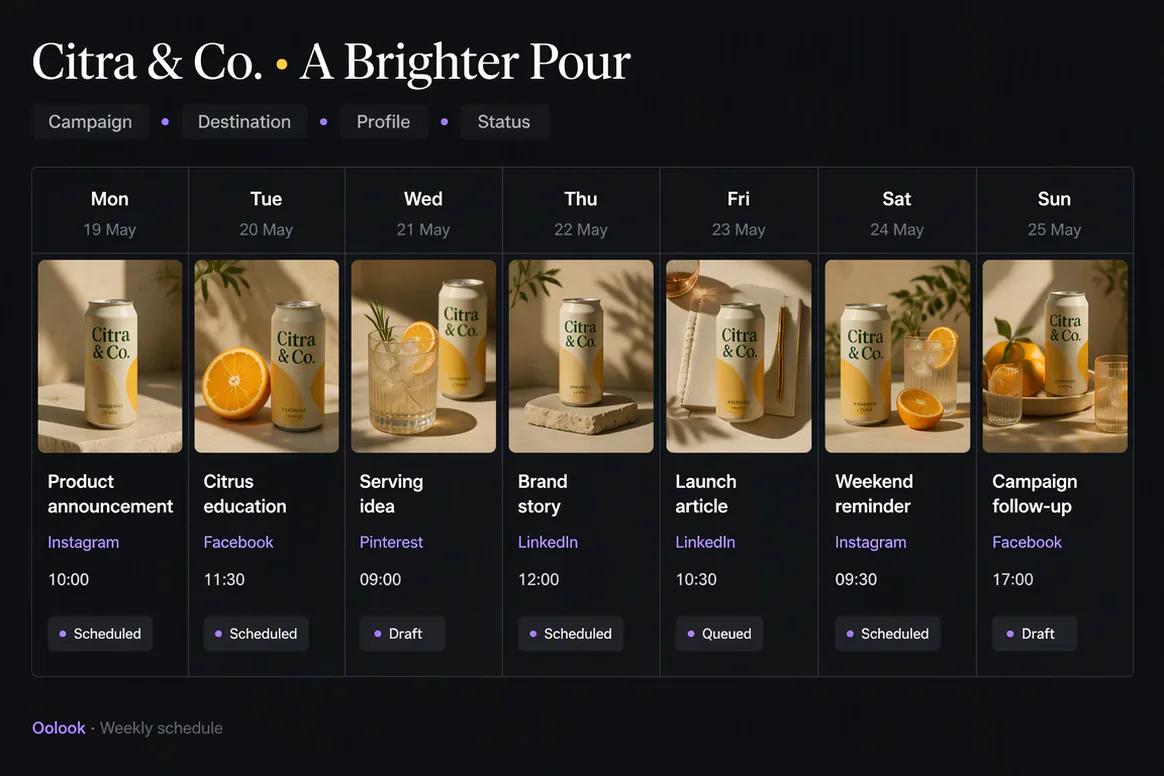
Oolook displaying a weekly social media publishing calendar

Weekly Publishing Calendar

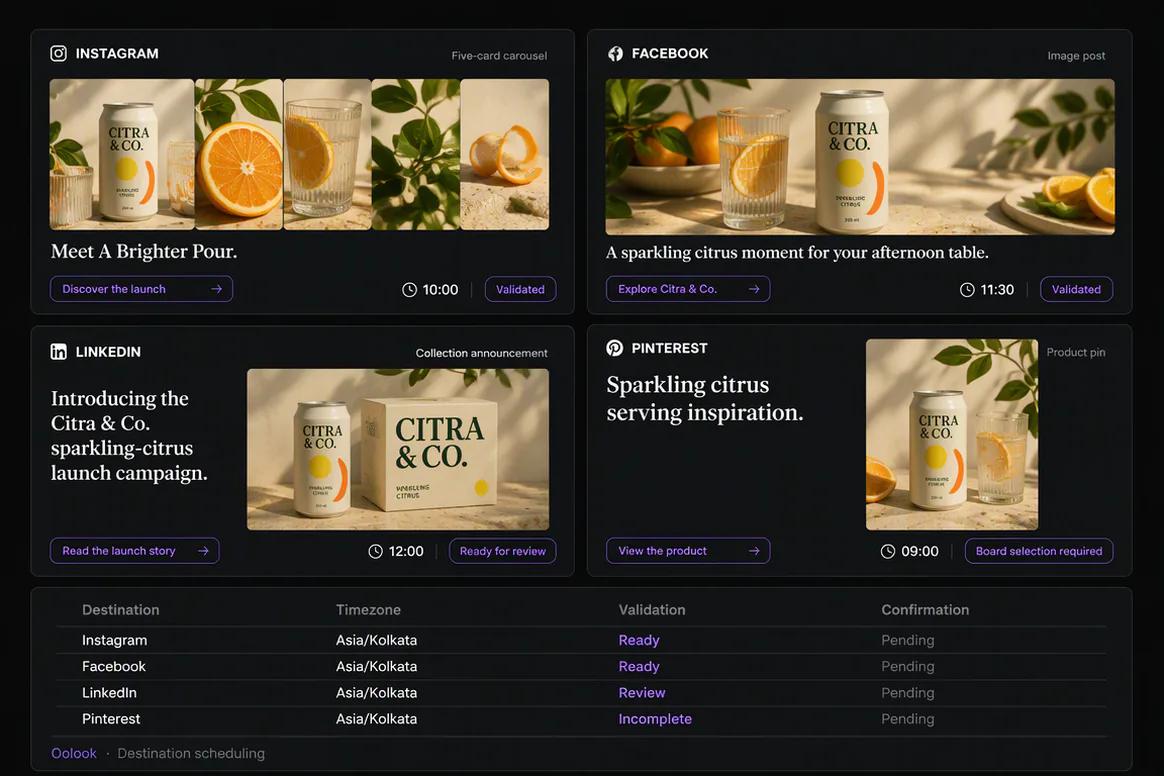
Organize approved campaign content by destination, date, time, campaign, and publication state.

Oolook displaying a multi-platform campaign schedule

Multi-Platform Schedule

Prepare independent destination actions while keeping them connected to one approved campaign.

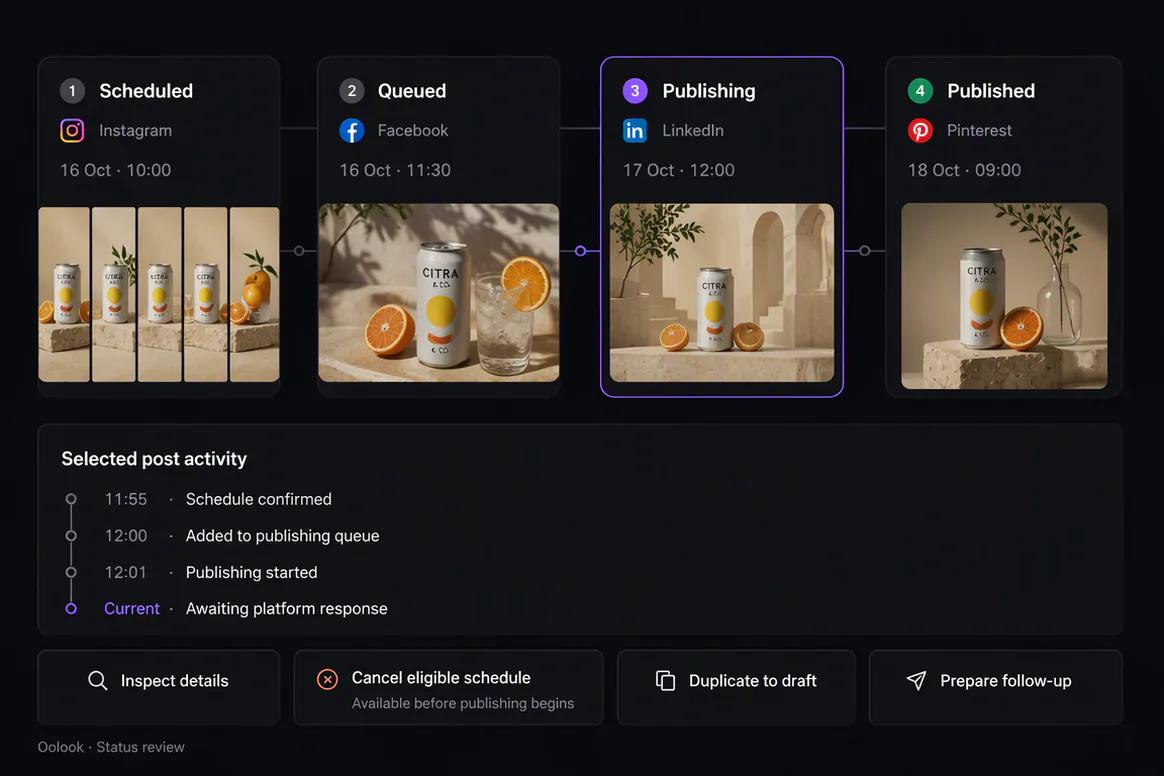
Oolook displaying scheduled social post statuses

Scheduling Status Review

Follow posts through scheduled, queued, publishing, published, and attention-required states.

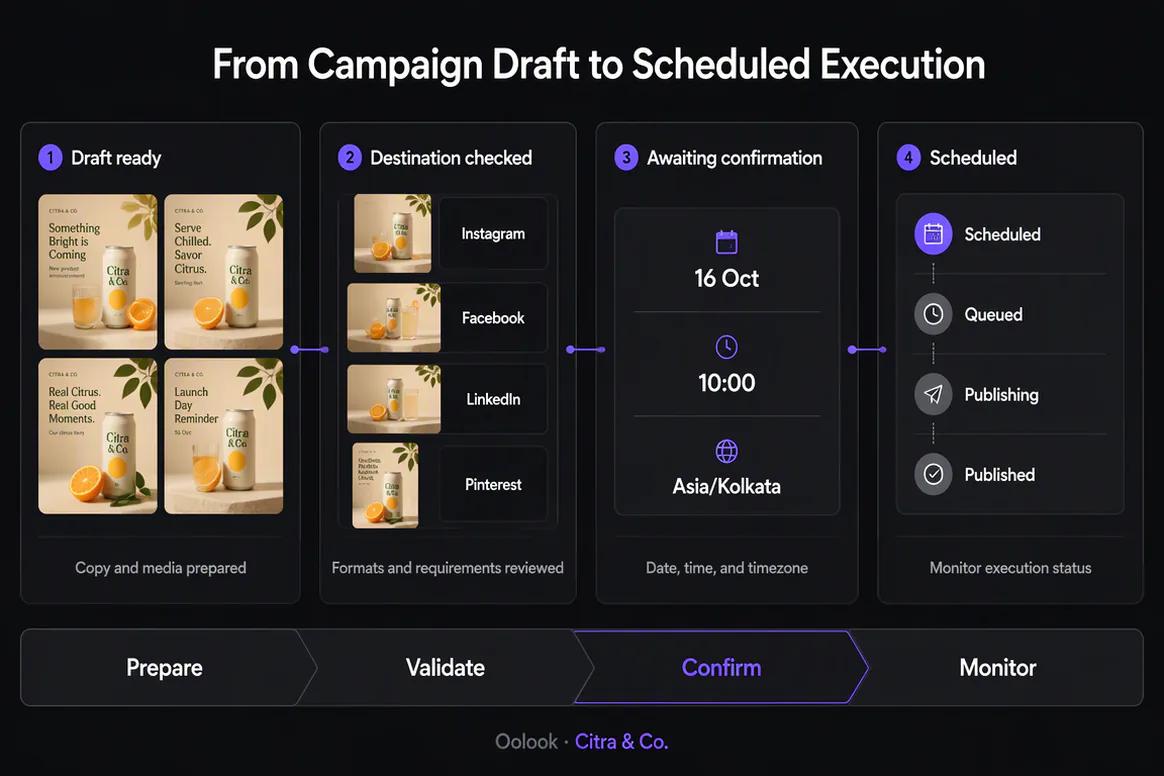
Oolook displaying the complete social scheduling workflow

Complete Scheduling Workflow

Move from approved drafts through validation and confirmation into scheduling and monitoring.

Oolook Copilot in action

How Oolook Copilot Prepares a Scheduling Action

Connect workspace context to a transparent publishing action that remains under user control.

01

Describe the publishing request

Tell Copilot which approved content, destinations, profiles, and publishing period should be used.

02

Inspect available context

Copilot can review available Brand Kit information, drafts, media, profiles, schedules, and publishing records.

03

Prepare the action

The destination, caption, media, date, time, timezone, and supported settings are assembled for review.

04

Review and confirm

Inspect the complete publishing action before allowing the supported workspace change.

Built for Social Media Scheduling

Manage the States Around Social Publication

Exact formats, publishing controls, and destination settings depend on current social-network APIs, account eligibility, permissions, and Oolook availability.

Editable drafts

Keep incomplete or unapproved content editable before it enters the publishing queue.

Scheduled posts

Prepare eligible content for publication at a selected date, time, and timezone.

Immediate publication

Submit eligible approved content without waiting for a later scheduled time.

Publication states

Monitor queued, processing, completed, failed, retrying, and attention-required actions where supported.

Practical marketing jobs

Use Oolook for Recurring Social Scheduling Work

Keep recurring publishing tasks connected to the selected brand, campaign, and destination.

Schedule a multi-post product campaign

Prepare next week's social content

Adapt one campaign for several destinations

Review all posts waiting for approval

Find publishing actions that need attention

Reschedule an eligible draft after review

One connected workspace

Connect Scheduling to the Rest of the Marketing Workflow

Publishing works better when the brand context, content, creative assets, destinations, and reports remain connected.

Brand Kit

Keep available audience, positioning, writing, and visual guidance connected to the scheduled content.

Oolook Copilot

Inspect available workspace information and prepare supported publishing actions for confirmation.

Creative applications

Generate the captions, images, carousels, or supporting creative required before scheduling.

Media Library

Find and reuse uploaded, generated, processed, and approved assets inside the selected brand.

Publishing queue

Follow eligible actions through scheduling, processing, publication, retry, or attention-required states.

Available reporting

Review accessible profile and post information after enough performance data has been collected.

Why Oolook

Replace Calendar Handoffs With a Connected Publishing Workflow

Oolook keeps the complete supported social action associated with the brand workspace.

Workflow
Disconnected tools
Oolook
Content
Copied manually from a writing tool
Prepared inside the selected brand workspace
Media
Downloaded and uploaded again
Selected from the brand Media Library
Destinations
The same version is sent everywhere
Each destination can be reviewed separately
Validation
Issues appear after submission
Supported requirements are checked before confirmation
Status
Publication is checked manually
Publishing states remain visible in the workflow

Step-by-step guide

How to Schedule Social Media Posts

Follow a controlled process from brand-aware content preparation to publication monitoring.

  1. 1

    Select the correct brand workspace

    Use the workspace containing the relevant Brand Kit, media, connected profiles, drafts, and publishing records.

  2. 2

    Connect an eligible social profile

    Complete the provider authorization, account selection, permissions, consent, and applicable plan checks.

  3. 3

    Create or select the content

    Prepare a new caption and creative asset or choose an approved draft already stored in the workspace.

  4. 4

    Select the destination

    Choose the correct eligible social profile and review its current connection status.

  5. 5

    Review platform-specific details

    Check the caption, media, destination, and supported fields required by that social network.

  6. 6

    Set the publication timing

    Choose immediate publication or an eligible date, time, and timezone.

  7. 7

    Confirm and monitor

    Approve the complete action and follow it through the publishing queue.

Frequently asked questions

Your Social Media Scheduling Questions, Answered

What is a social media scheduling tool?+

A social media scheduling tool helps prepare content for publication at a selected date and time. Oolook connects scheduling to brand context, creative assets, destination-specific drafts, validation, status monitoring, and available reporting.

Can Oolook schedule social media posts?+

Oolook supports drafts, immediate publishing, scheduling, destination controls, platform validation, queue states, retries, and publication-status monitoring where currently supported.

Which social platforms can I schedule with Oolook?+

Oolook has documented workflows for Instagram, Facebook, LinkedIn, Pinterest, YouTube, X, and Google Business Profile. Exact scheduling capabilities depend on current APIs, account eligibility, permissions, and Oolook availability.

Can I edit content before it is scheduled?+

Yes. Captions, media, destinations, dates, times, timezones, and supported platform settings can be reviewed before confirmation.

Can I schedule different content for each platform?+

Yes. Oolook supports independently editable destination content and platform-specific settings where currently available.

Can Copilot schedule content automatically?+

Copilot can prepare supported scheduling actions, but workspace changes are presented for confirmation before execution.

What happens if a scheduled post fails?+

Oolook exposes supported queue and publication states, including failed, retrying, reconnect-required, cancelled, and completed states where available.

Does Oolook recommend the guaranteed best time to post?+

No guaranteed best posting time should be assumed. Use relevant audience context and available performance information when selecting the publishing time.

Start with Oolook

Schedule Social Content Without Disconnecting the Workflow

Connect brand-aware drafts, approved media, destination settings, publishing controls, status monitoring, and available reporting.