
How to Find Trending TikTok Sounds: Ultimate Guide
Understanding how to find trending TikTok sounds is crucial for anyone looking to increase their…
Solutions
Solutions OverviewMarketing AgenciesSmall BusinessesSocial Media ManagersMarketing TeamsContent CreatorsMulti-Brand MarketingBy Outcome
Social Media CampaignsSeasonal MarketingProduct Launch ContentEvent PromotionBrand-Consistent ContentContent RepurposingCross-Platform ContentMarketing Asset ReuseProduct EducationEducational ContentCustomer Story ContentSEO Blog ProductionBlog Content RefreshContent Performance ReviewPricingResourcesOolook Best

If you find yourself frustrated by the unexpected activation of Sticky Keys, don’t worry—you’re not alone. Let’s dive right into the step-by-step instructions to turn off Sticky Keys on both Windows and Mac systems, ensuring a smoother experience.
By following these steps, you should be able to turn off Sticky Keys on your device. If you continue to experience issues, be sure to check out our troubleshooting section later in this guide for more detailed solutions.
Following our comprehensive guide on how to turn off sticky keys on both Windows and Mac, it’s essential to understand what sticky keys are and why they might be causing issues during your computer use.
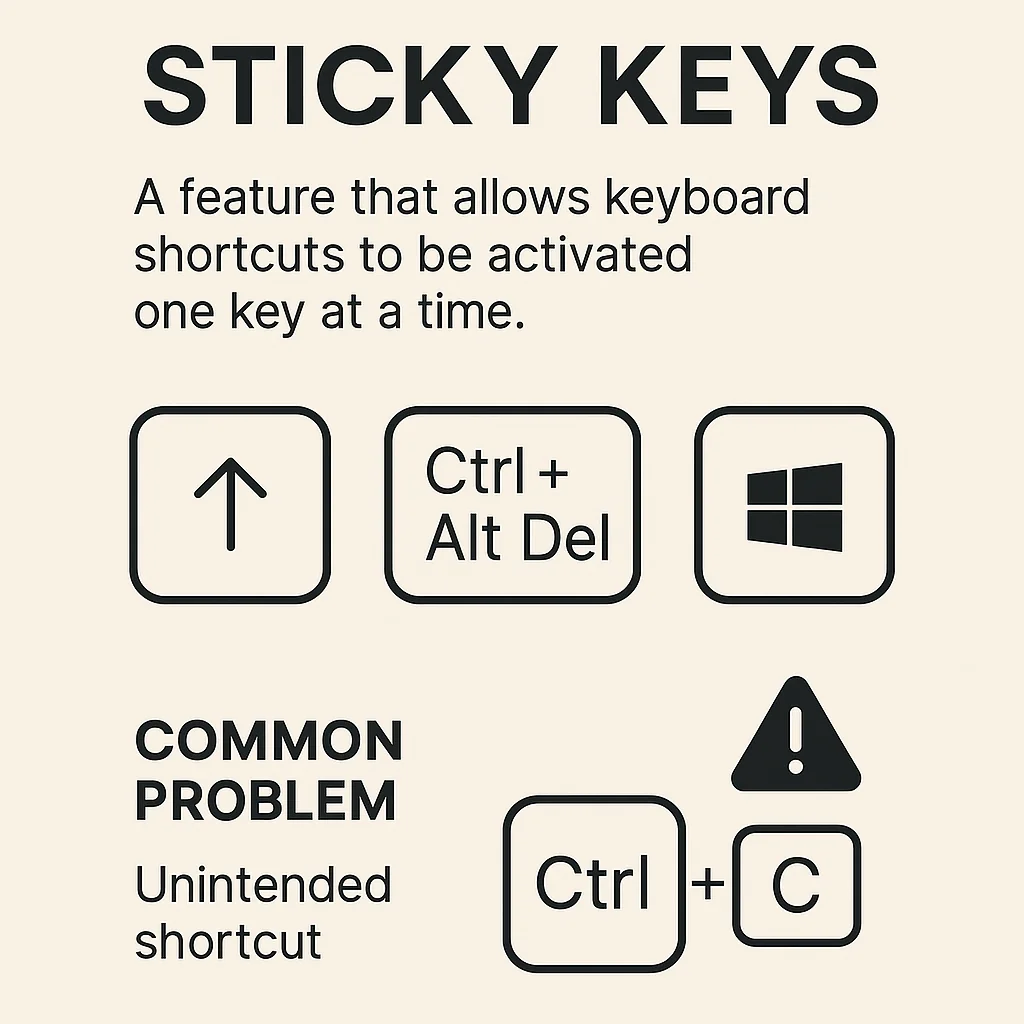
Definition of Sticky Keys: Sticky keys is an accessibility feature designed to help users who have difficulty holding down multiple keys simultaneously. When activated, it allows you to press one key at a time for keyboard shortcuts instead of pressing them all at once. For example, instead of pressing Ctrl + Alt + Del simultaneously, you can press each key in sequence.
Common Problems Caused by Sticky Keys: While sticky keys can be incredibly useful for some, it can cause confusion and frustration for others, especially if activated unintentionally. Common problems include:
Why Sticky Keys Activate: Sticky keys can be activated through a simple keyboard shortcut: pressing the Shift key five times in a row. This feature is designed to be easily accessible, but it can be triggered accidentally, leading to unexpected behavior and confusion. Knowing how to turn off sticky keys is crucial to avoid these interruptions.
It’s important to recognize when sticky keys are causing a keyboard shortcuts issue, so you can swiftly disable the feature and continue with your tasks seamlessly. For further reading on accessibility features and their impact, you might find this high-quality study on accessibility features in operating systems insightful.
Now that you understand what Sticky Keys are and why they might be causing issues, let’s dive into the steps on how to turn off sticky keys on Windows. Whether you’re using Windows 10 or an older version of Windows, we’ve got you covered with easy-to-follow instructions.
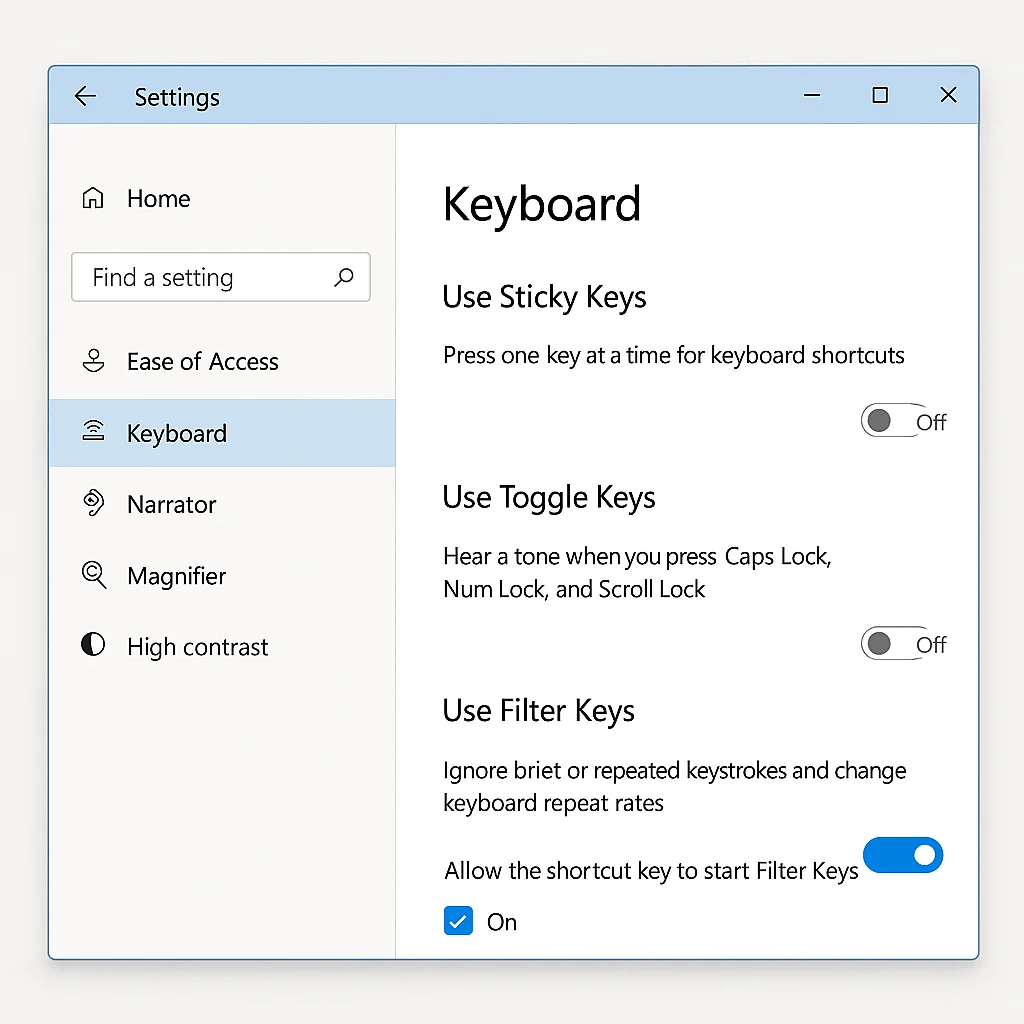
These steps should help you easily disable Sticky Keys on Windows 10. If you need further assistance, the official Microsoft support page provides more detailed guidance.
For those using older versions of Windows, such as Windows 7 or Windows 8, follow these steps:
These steps will help you disable Sticky Keys on older Windows versions, ensuring a smoother and more efficient user experience.
For more tips on optimizing your tech, check out our marketing campaigns guide.
If Sticky Keys continue to be an issue, proceed to our next section where we troubleshoot persistent Sticky Keys problems and offer solutions to keep them from reactivating.
Now that you’ve learned how to turn off Sticky Keys on Windows, let’s move on to how to disable Sticky Keys on Mac. This process is straightforward and can be done in just a few steps. Whether you’re using the latest macOS or an older version, we’ll guide you through the necessary settings adjustments.
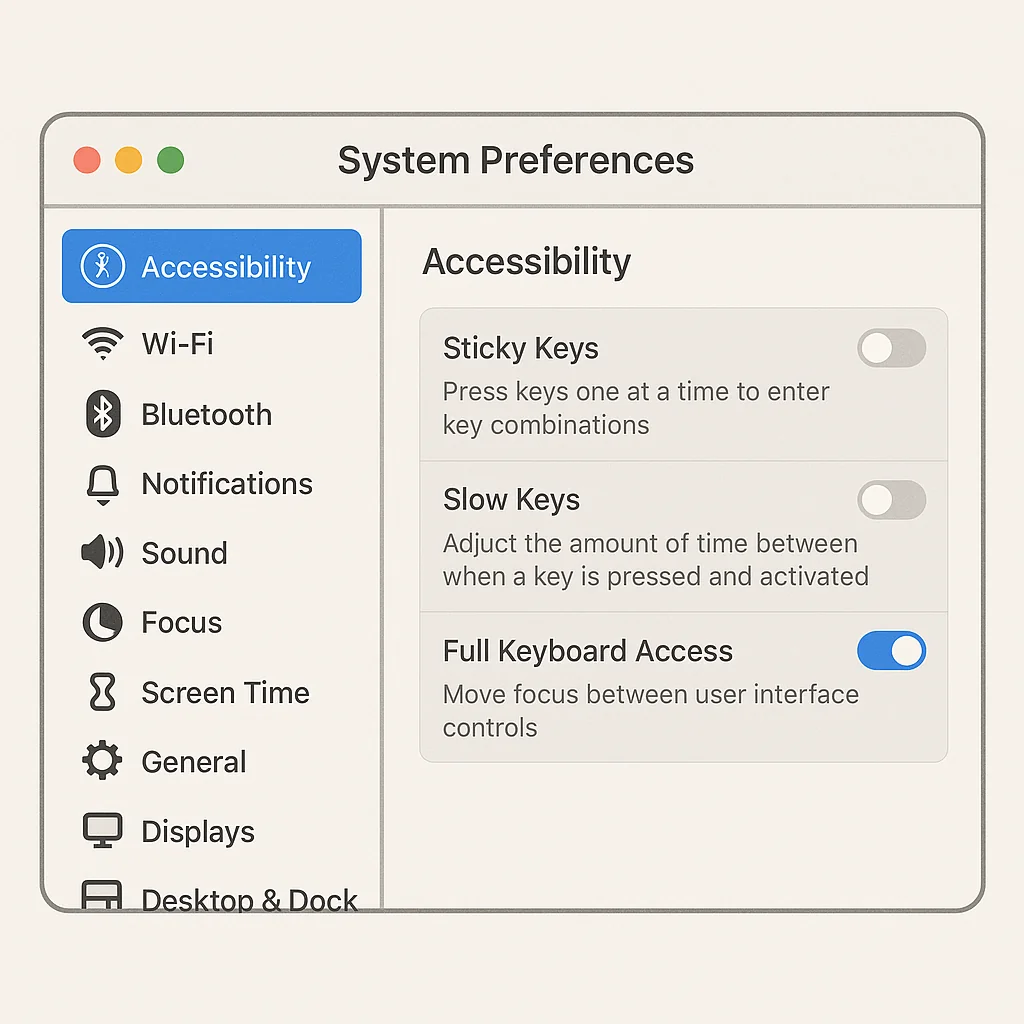
For more detailed instructions and visual guides, you can always refer to the official Apple support page on accessibility settings.
While the basic steps to disable Sticky Keys on a Mac are generally consistent, there may be slight variations depending on your macOS version. For example, in older versions of macOS, the Accessibility menu might be labeled as Universal Access. Additionally, the layout and naming conventions of certain settings can vary slightly between different macOS updates.
If you’re having trouble locating the Sticky Keys option on your specific macOS version, don’t hesitate to consult Apple’s official documentation or seek help from online forums. For more tech tips, see our guide on becoming a UGC creator.
By following these steps, you should be able to easily disable Sticky Keys on your Mac, ensuring a smoother and more efficient user experience.
After disabling Sticky Keys on your Mac, you might still encounter persistent issues. This section covers essential sticky keys troubleshooting steps to ensure your keyboard functions properly.
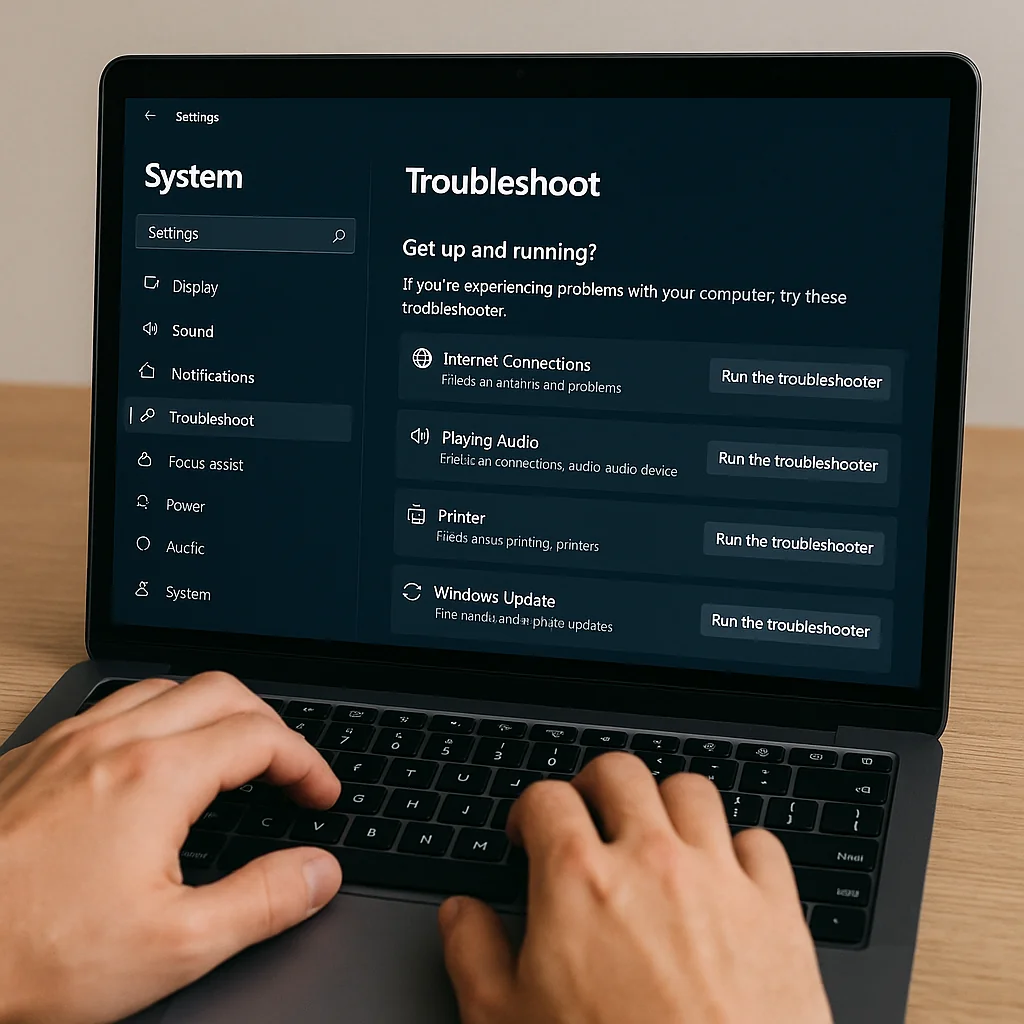
First, let’s address some basic troubleshooting techniques that often resolve keyboard problems:
If the basic steps don’t work, try these advanced solutions:
For more tips and tricks on handling common tech issues, learn how to troubleshoot common tech issues and stay ahead of trends.
If none of the above solutions work, it might be time to seek professional assistance. A certified technician can diagnose and fix any underlying hardware issues. Additionally, consider reading this high-quality study on common keyboard issues to understand more about potential problems.
By following these troubleshooting steps, you can effectively address and resolve persistent Sticky Keys issues, ensuring a smooth and hassle-free typing experience.
After dealing with persistent Sticky Keys issues, it’s essential to take preventive measures to avoid future occurrences. Implementing the following strategies can help prevent Sticky Keys from activating unexpectedly and ensure a smoother computing experience.
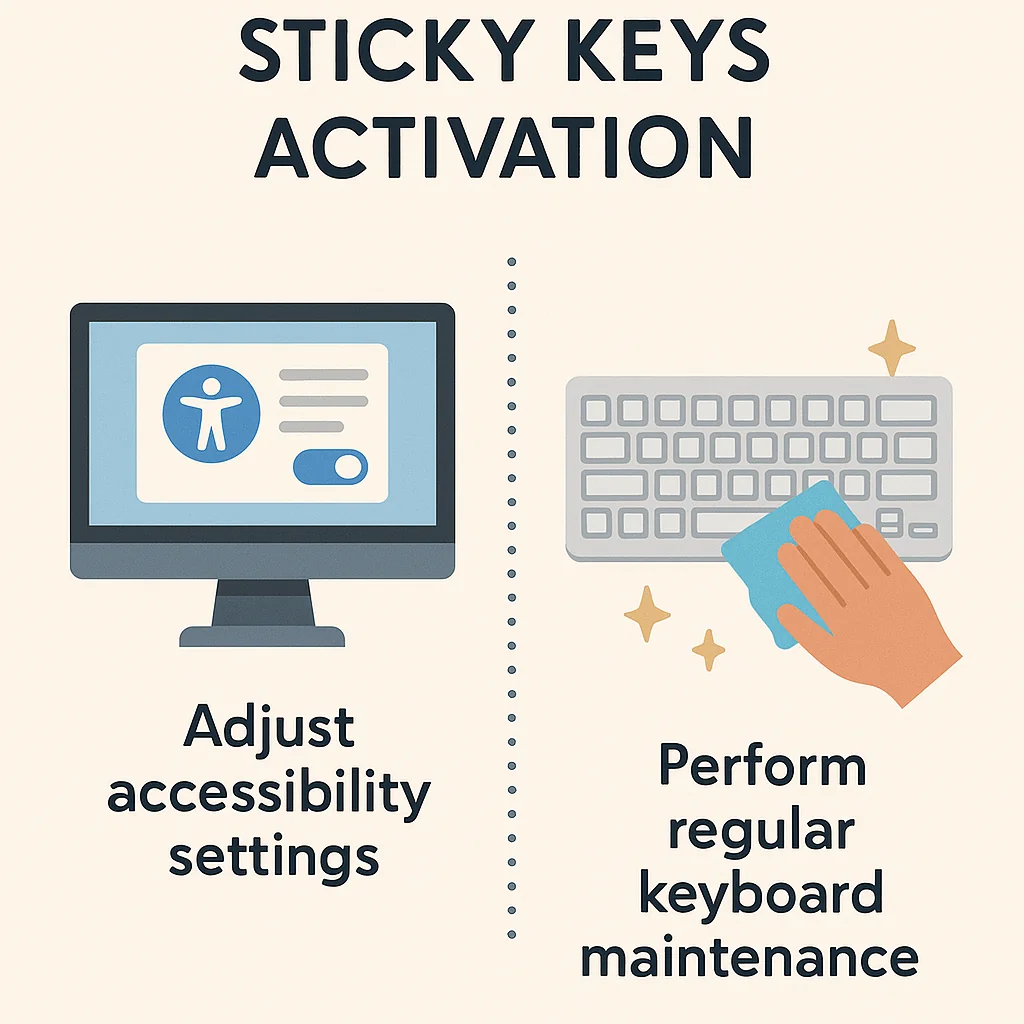
One of the most effective ways to prevent Sticky Keys activation is by adjusting your operating system’s accessibility settings. Both Windows and Mac offer options to customize keyboard shortcuts and disable Sticky Keys entirely. Here’s how you can do it:
For users who frequently encounter keyboard shortcuts issues, third-party software can provide additional control and customization over keyboard settings. Programs like SharpKeys or KeyTweak allow you to remap keys and disable specific functions that might cause problems. This can be particularly useful for preventing Sticky Keys in situations where built-in accessibility settings are insufficient.
Maintaining a clean and functional keyboard is crucial to avoid accidental key presses that can activate Sticky Keys. Here are some tips:
By following these preventive measures, you can effectively manage and prevent Sticky Keys from disrupting your workflow. For more in-depth tech advice, check out our guide on turning side hustles into careers.
As we have explored, understanding how to turn off sticky keys on Windows and Mac is essential to ensure a smooth and uninterrupted computing experience. Whether you’re dealing with minor inconveniences or persistent issues, the steps and troubleshooting tips provided can help you regain control over your keyboard settings.
We hope this guide has been helpful in addressing your concerns. Remember, if you follow the preventive measures outlined, you can avoid accidental activation of sticky keys in the future. Thank you for reading, and happy computing!
Having preventive measures in place is great, but understanding sticky keys is equally important to avoid accidental activation.
Sticky keys is a feature designed to help users who have difficulty pressing multiple keys simultaneously. It allows you to press keyboard shortcuts one key at a time instead of all at once. While this can be beneficial for some, it can also cause unintended shortcuts if turned on accidentally, leading to frustration.
After understanding what sticky keys are and why they might cause issues, let’s move on to disabling them on Windows 10. If you find sticky keys more of a nuisance than a help, you can easily turn them off by following these steps:
This should effectively disable the sticky keys feature on your Windows 10 system, allowing you to type without unexpected interruptions.
After addressing how to turn off sticky keys on Windows 10, let’s move on to macOS. Disabling sticky keys on your Mac is straightforward:
With these steps, you should be able to turn off sticky keys on your macOS device quickly and easily. If you encounter any issues, the following sections will provide additional troubleshooting tips and preventive measures.
After learning how to disable Sticky Keys on macOS, you might wonder why they keep turning on in the first place. Sticky Keys often activate due to specific keyboard shortcuts or default system settings. This can be particularly frustrating if it happens unexpectedly.
Explore more insights on AI, social media, and building a brand that lasts.
Understanding how to find trending TikTok sounds is crucial for anyone looking to increase their…

As we dive into the dynamic world of Instagram in 2025, finding trending audio can…

Welcome to your journey from novice to makeup maestro! In this GRWM: From Beginner to…

Meeting Minutes Template: Free Downloads & Step-by-Step Guide Meeting minutes are the official written record…