
What is UGC Creator REALLY: Ultimate Guide
User-Generated Content (UGC) creators have become a pivotal element in the marketing landscape, transforming how…
Solutions
Solutions OverviewMarketing AgenciesSmall BusinessesSocial Media ManagersMarketing TeamsContent CreatorsMulti-Brand MarketingBy Outcome
Social Media CampaignsSeasonal MarketingProduct Launch ContentEvent PromotionBrand-Consistent ContentContent RepurposingCross-Platform ContentMarketing Asset ReuseProduct EducationEducational ContentCustomer Story ContentSEO Blog ProductionBlog Content RefreshContent Performance ReviewPricingResourcesOolook Best

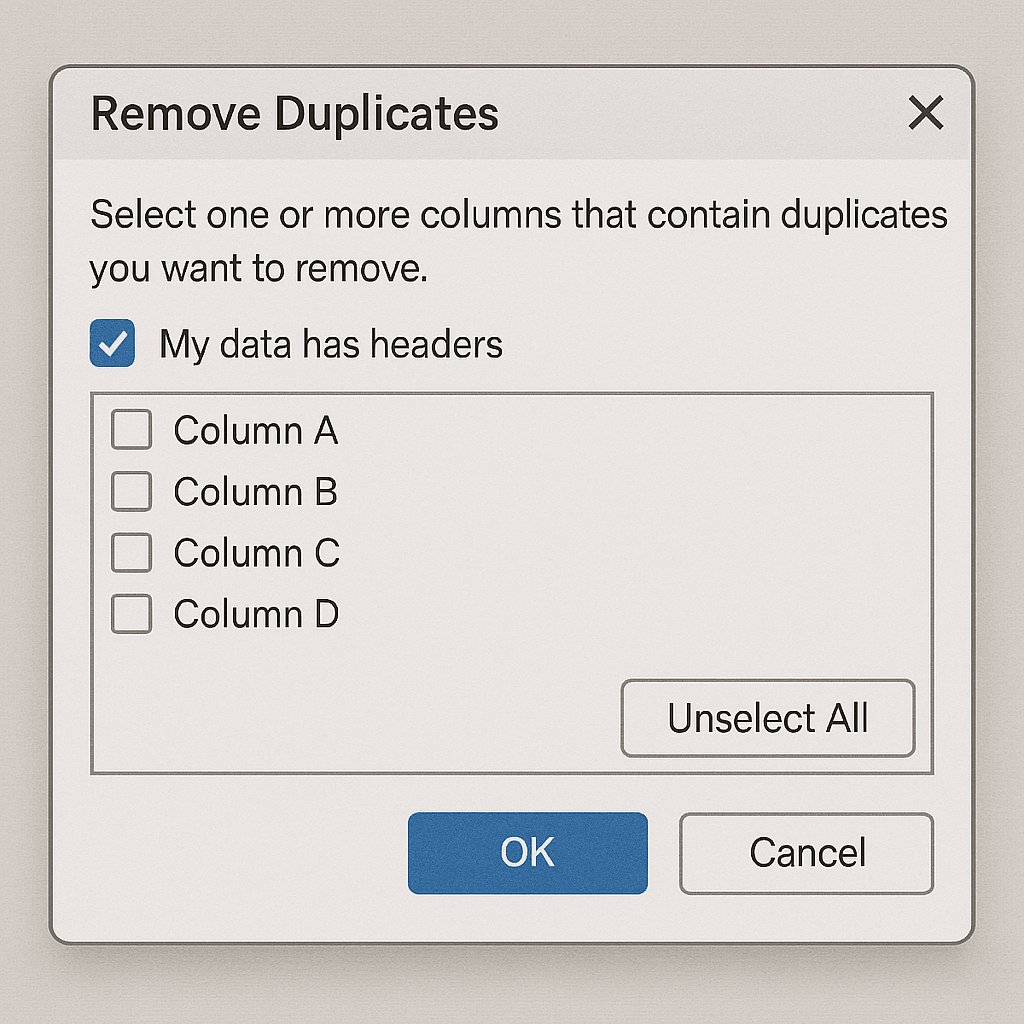
Removing duplicates in Excel is essential for keeping your spreadsheets accurate, especially when working with large datasets. In this guide, we cover five proven methods to find and remove duplicates efficiently—from quick tools to more advanced Excel features.
| Method | Best For | Permanent Removal? | Excel Version |
|---|---|---|---|
| Remove Duplicates Tool | Simple duplicate rows | Yes | All modern versions |
| Conditional Formatting | Visual detection | No | All versions |
| Advanced Filter | Copying unique values | No | All versions |
| Formulas (COUNTIF, CONCATENATE) | Custom conditions | No | All versions |
| Power Query | Large, dynamic data | Yes | Excel 2016+ / 365 |
This built-in feature lets you delete duplicate values in seconds.
Steps:
Tip: Always back up your data before using this method as it deletes values permanently.
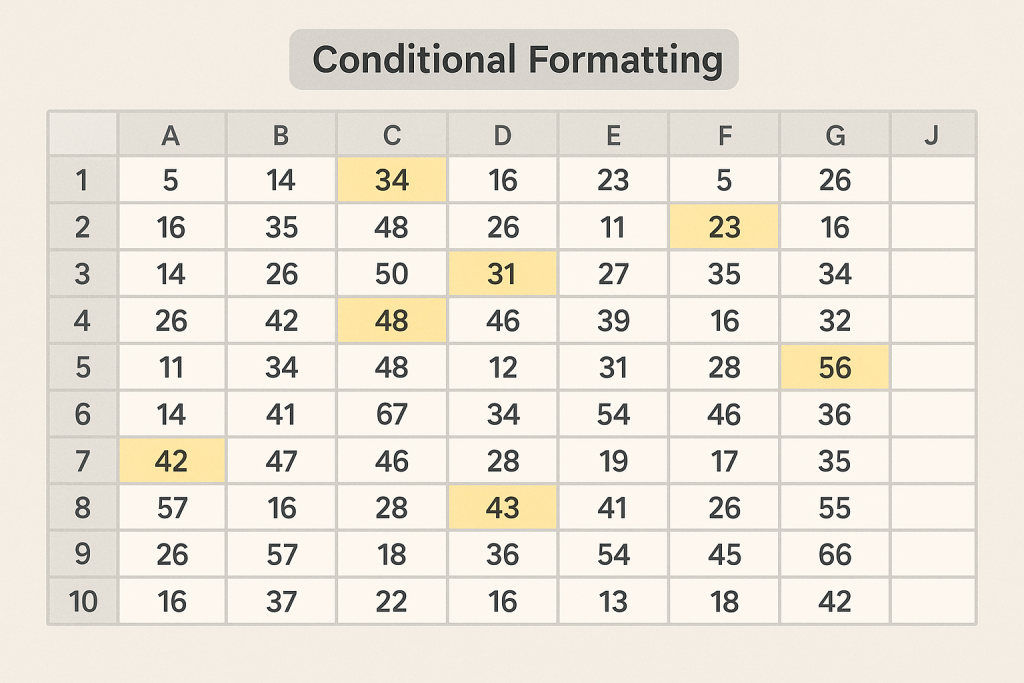
This method lets you see duplicates without deleting them.
Steps:
Great for review and manual cleanup.
This lets you create a separate list of unique values.
Steps:
Ideal for exporting or preserving original data.
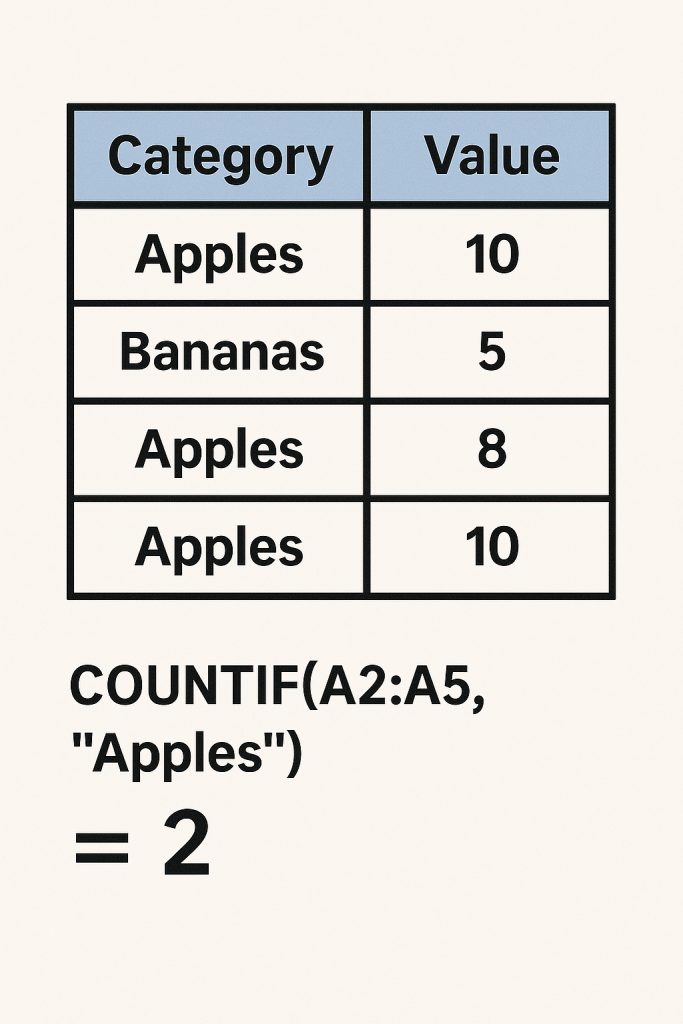
Custom formulas give you full control over what is considered a duplicate.
Example Setup:
=A2&B2&C2=COUNTIF($D$2:$D$100,D2)Steps:
Works great when duplicate criteria span multiple columns.
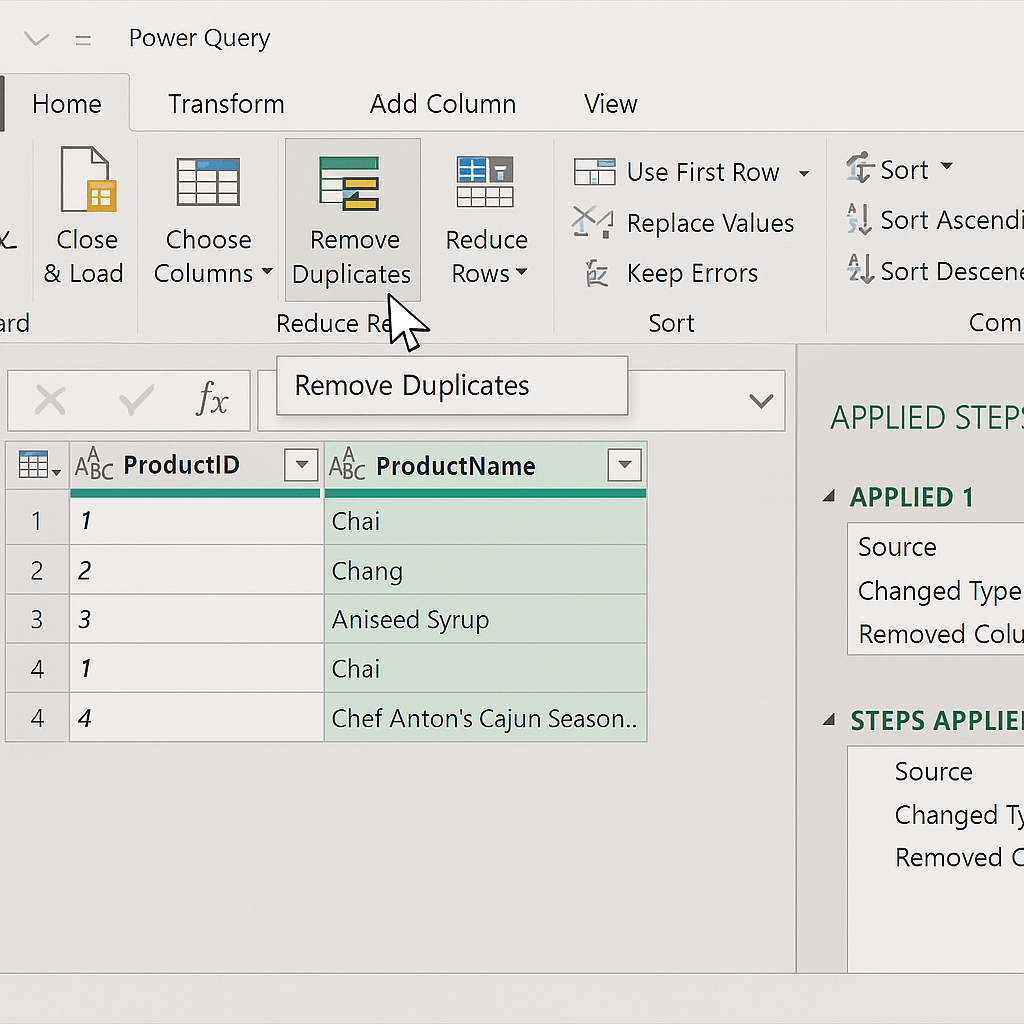
Power Query lets you automate duplicate removal.
Steps:
Best for recurring reports or real-time data cleaning.
Explore more insights on AI, social media, and building a brand that lasts.
User-Generated Content (UGC) creators have become a pivotal element in the marketing landscape, transforming how…

How AI is Revolutionizing Social Media Content Creation for SMBs In today’s fast-paced digital landscape,…

The landscape of social media in 2025 is both dynamic and expansive. As we dive…

To get started with TikTok’s Creator Search Insights, you first need to understand its primary…