
5 Ways an AI Content Generator Can Save Your Marketing Team Hours
5 Ways an AI Content Generator Can Save Your Marketing Team Hours In today’s fast-paced…
Solutions
Solutions OverviewMarketing AgenciesSmall BusinessesSocial Media ManagersMarketing TeamsContent CreatorsMulti-Brand MarketingBy Outcome
Social Media CampaignsSeasonal MarketingProduct Launch ContentEvent PromotionBrand-Consistent ContentContent RepurposingCross-Platform ContentMarketing Asset ReuseProduct EducationEducational ContentCustomer Story ContentSEO Blog ProductionBlog Content RefreshContent Performance ReviewPricingResourcesOolook Best

Now that you understand what Sticky Keys are and why you might want to disable them, let’s dive straight into the quick fix for disabling Sticky Keys. Follow these step-by-step instructions to turn off Sticky Keys in under 60 seconds.
If you’re using a different operating system, the process might vary slightly, but the core steps are generally the same. For specific instructions tailored to your OS, refer to the next section where we cover alternative methods for different operating systems.
With this quick guide, you should be able to disable Sticky Keys swiftly and get back to your tasks without any interruptions. Remember, if you need further assistance, detailed screenshots and instructions are available in the upcoming sections.
Understanding what Sticky Keys are and how they can inadvertently affect your workflow is crucial before you dive into the steps to cancel them. Sticky Keys is an accessibility feature designed to help individuals who have difficulty holding down multiple keys simultaneously. When activated, it allows a user to press keys in sequence rather than simultaneously to execute keyboard shortcuts.
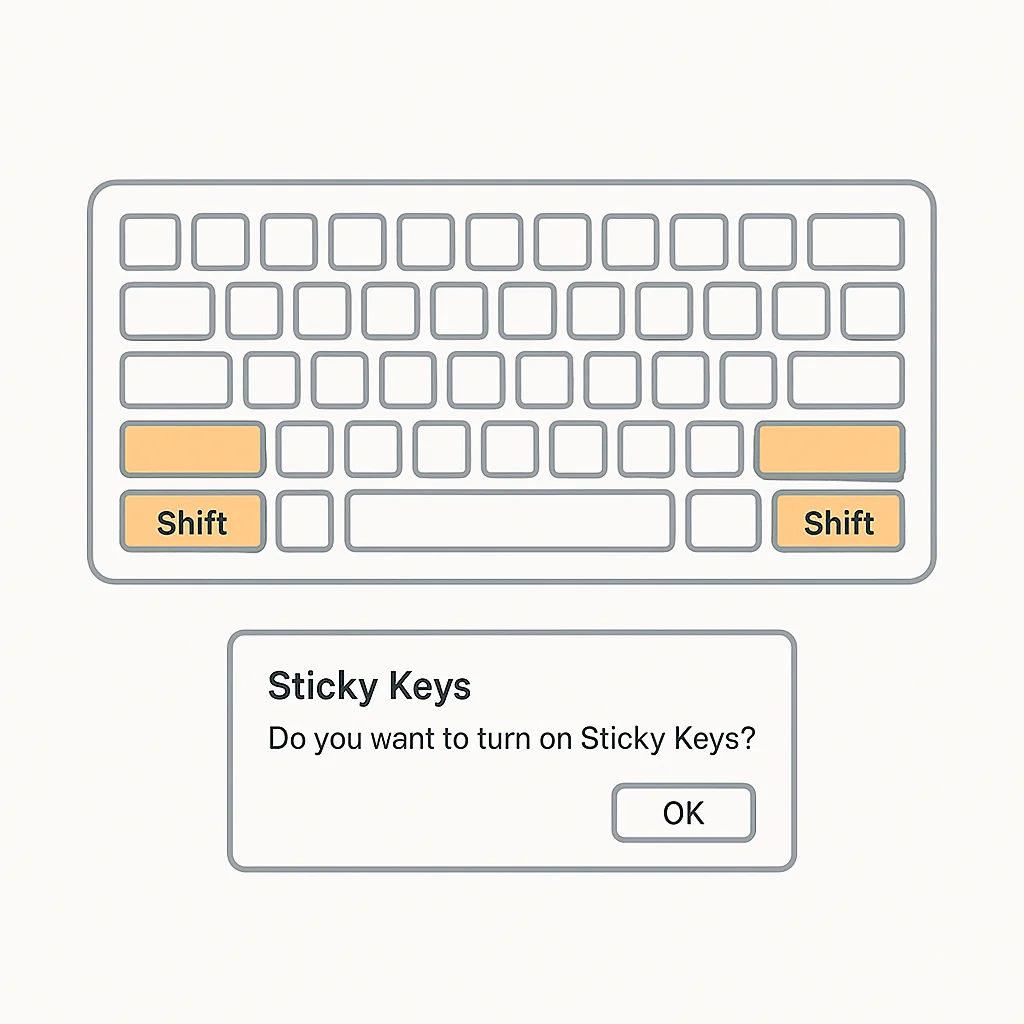
Common triggers for the activation of Sticky Keys include rapidly pressing the Shift key five times. This can easily happen during the regular use of your keyboard, especially if you rely on keyboard shortcuts for productivity. While this feature is beneficial for some, it can be quite annoying for others, leading to confusion and disruption in the user experience.
The impact of Sticky Keys on user experience can range from mild inconvenience to significant disruption, especially if the activation happens unexpectedly. It may interfere with typing, gaming, or any activity that requires uninterrupted keyboard use. For those not needing this feature, encountering it can feel like an obstacle rather than a help.
For more on managing accessibility settings, check out our guide on social media image sizes. Additionally, a high-quality study on keyboard accessibility features can be found here.
Now that you understand what Sticky Keys are and why they might be activated, let’s dive into the step-by-step guide on how to disable Sticky Keys on Windows 10. This quick fix for Sticky Keys activation is straightforward and can be accomplished in under 60 seconds.
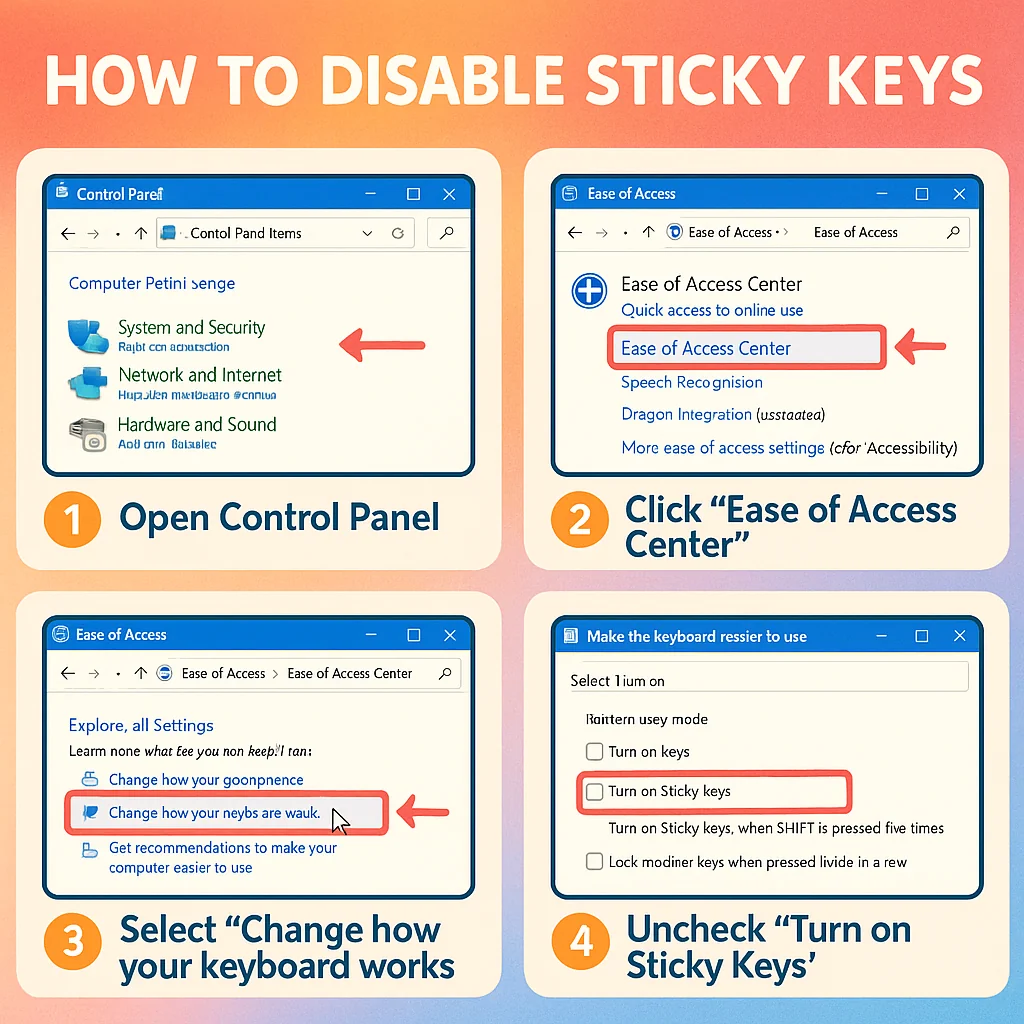
First, you need to access the Control Panel on your Windows 10 computer. Follow these steps:
Once you are in the Control Panel, follow these steps to navigate to the Ease of Access settings:
To disable Sticky Keys, follow these instructions:
You can also visit the official Microsoft support page on Sticky Keys for more detailed instructions and visual aids.
These simple steps should help you disable Sticky Keys and prevent accidental activation in the future. For more quick fixes and tech tips, visit our blog on top social media platforms.
Now that you know how to cancel Sticky Keys quickly, let’s explore alternative methods for different operating systems. Whether you’re using MacOS or Linux, we’ve got you covered with simple steps to disable Sticky Keys.
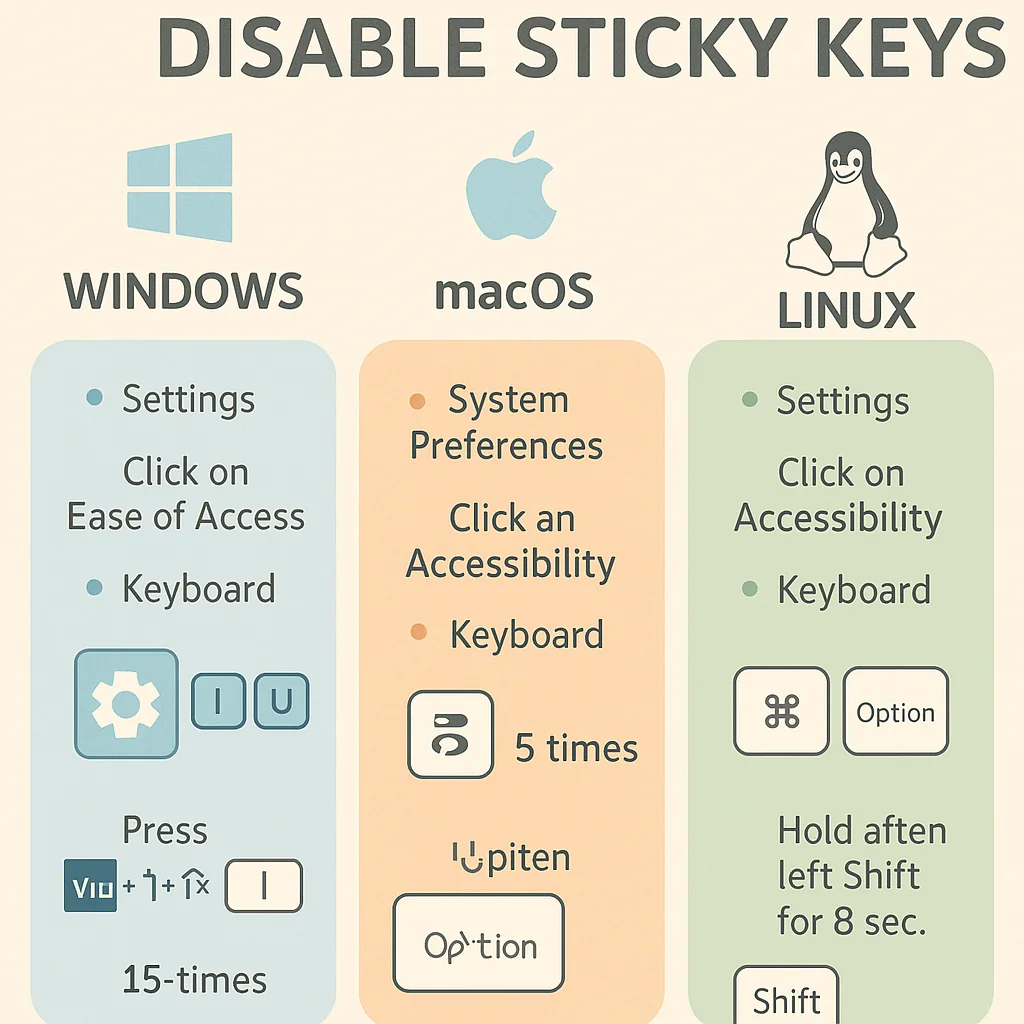
To disable Sticky Keys on MacOS, follow these steps:
For more detailed instructions, you can visit the Apple support page on accessibility.
Disabling Sticky Keys on Linux can vary slightly depending on your distribution, but generally, you can follow these steps:
If you’re using a specific Linux distribution, you might find more tailored instructions by searching online with your distro’s name followed by “disable Sticky Keys.”
In addition to navigating through menus, you can also use keyboard shortcuts to disable Sticky Keys:
By following these methods, you can disable Sticky Keys on any operating system with ease. If you want to delve deeper into customizing your settings, learn more about customizing your settings in our article on watermarks in social videos.
Now that you’ve learned how to cancel Sticky Keys in under 60 seconds and explored alternative methods for different operating systems, let’s focus on preventing Sticky Keys activation in the future. By making a few adjustments, you can ensure a smoother and less disruptive keyboard experience.
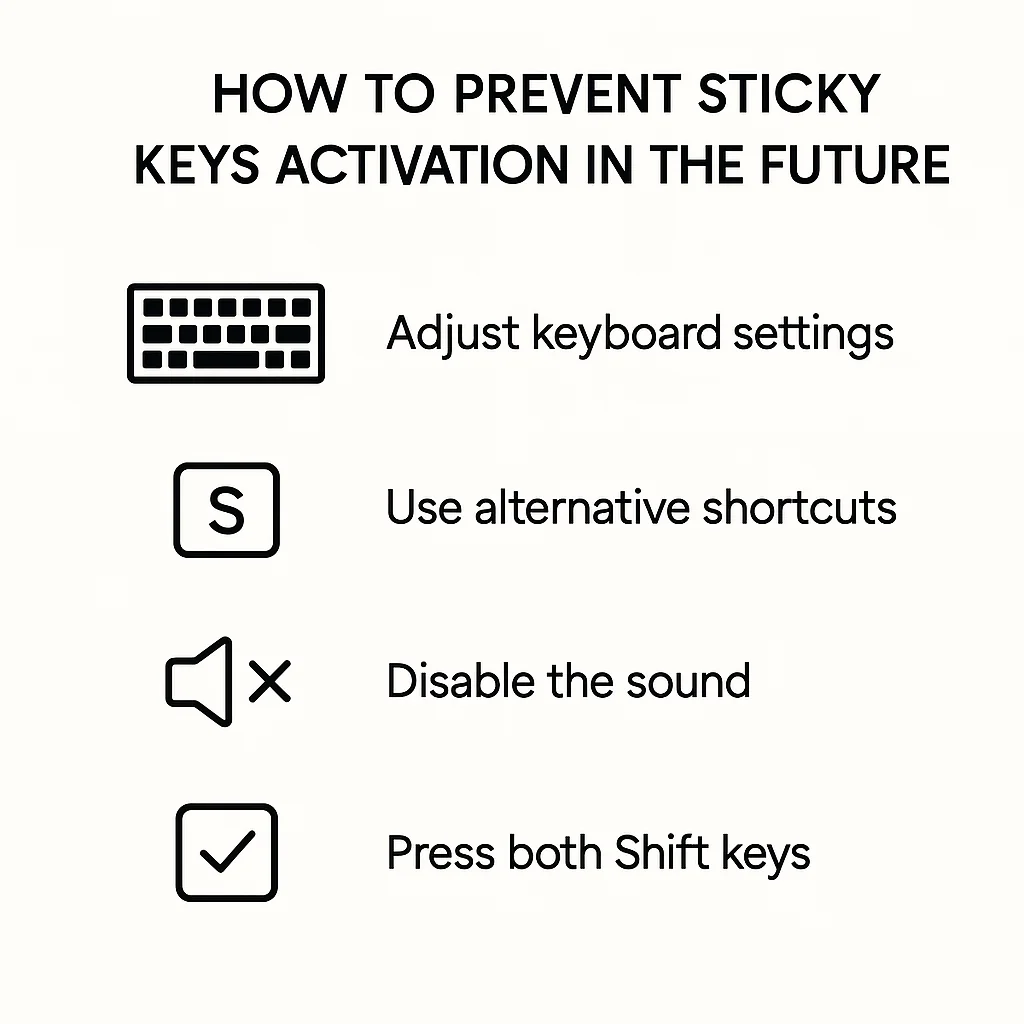
The most straightforward way to prevent Sticky Keys activation is by adjusting your keyboard settings. Here’s how you can do it:
For a more detailed guide on customizing keyboard settings, you can refer to this comprehensive guide.
Another effective way to prevent Sticky Keys activation is by using alternative shortcuts. Instead of pressing the Shift key five times consecutively, consider using modifier keys in combination with other keys to accomplish your tasks. This habit reduces the likelihood of accidentally triggering Sticky Keys.
If you find Sticky Keys particularly disruptive, you may want to permanently disable Sticky Keys. Follow these steps to permanently disable it:
By taking these steps, you can ensure that Sticky Keys won’t activate unexpectedly, allowing for a more seamless computing experience.
For more tech tips and guides, check out our beginner to pro makeup guide.
In conclusion, disabling Sticky Keys is a straightforward process that can be completed quickly. Whether you followed our step-by-step guide or explored alternative methods specific to your operating system, you now have the tools to handle this issue efficiently. Moreover, taking preventative measures will help you avoid accidental activation in the future. Remember, these simple steps can save you from unnecessary frustration. If you have any additional questions, please refer to our FAQ section for more information. Happy computing!
Now that you know how to prevent Sticky Keys from activating unexpectedly, let’s address some common questions about this feature.
What are Sticky Keys and why do they activate? Sticky Keys is an accessibility feature designed to assist users with physical disabilities. This feature allows keyboard shortcuts to be executed without pressing multiple keys simultaneously. It activates when you press the Shift key repeatedly, typically five times in a row. This can be helpful for users who may find it challenging to hold down multiple keys at once while typing or using shortcuts.
Now that you understand what Sticky Keys are and why they activate, let’s dive into how you can permanently disable this feature to avoid future frustration. Follow these straightforward steps:
By following these steps, you can prevent Sticky Keys from turning on unexpectedly, making your computer usage smoother and more enjoyable.
If the quick fix doesn’t resolve the issue, don’t worry—you still have options. First, check for system updates. Sometimes, an outdated operating system can cause problems with accessibility features like Sticky Keys. Updating your OS can often resolve these issues.
Next, consult the official support pages for your operating system. Whether you are using Windows, macOS, or Linux, these resources can provide specific troubleshooting steps tailored to your system.
If you’ve tried both of these steps and the problem persists, it might be time to consider hardware issues. Faulty keyboards or other hardware problems can sometimes mimic the symptoms of Sticky Keys. In such cases, testing your keyboard on another device can help identify the root cause.
Explore more insights on AI, social media, and building a brand that lasts.
5 Ways an AI Content Generator Can Save Your Marketing Team Hours In today’s fast-paced…

As the digital marketing landscape evolves, brands are increasingly turning to user-generated content (UGC) creators…
As we dive into the dynamic world of Instagram in 2025, finding trending audio can…

User-Generated Content (UGC) creators have become a pivotal element in the marketing landscape, transforming how…